

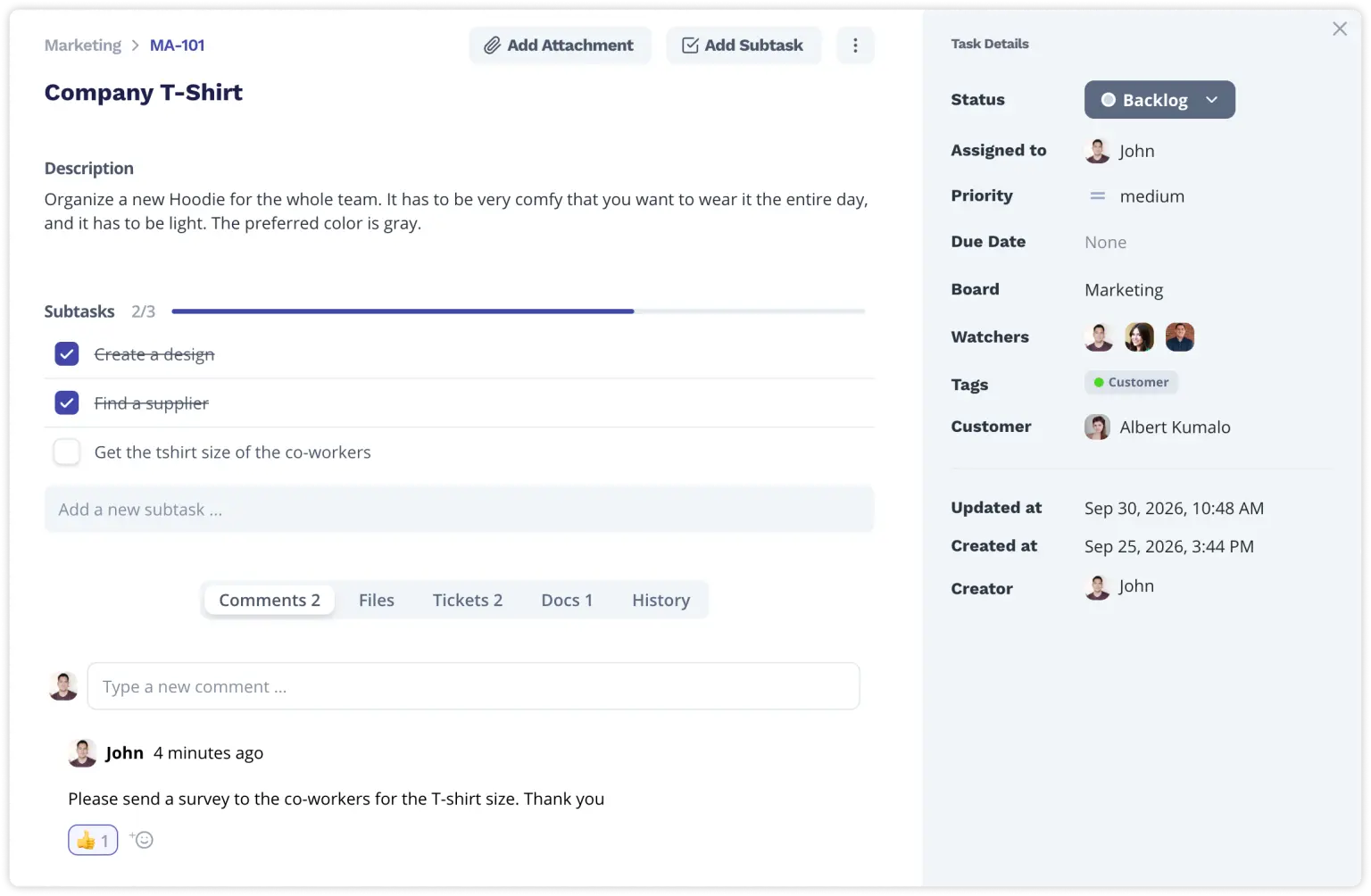
In HelpSpace, you can create tasks from different places. This allows you to add a new task exactly where it is needed.
Ways to create a task
A new task can be created from:
Tasks
My Tasks
Kanban Board
Ticket
Create a task from Tasks or My Tasks
You can create a new task in the Tasks or My Tasks area.
The Tasks area is useful when you want to create general tasks for your team or for a specific area of work.
The My Tasks area helps you quickly capture your tasks and organize your personal workload.
Create a task in a Kanban Board
When you work on a board, you will also find a button for creating new tasks. This allows you to create a task directly in the relevant board and assign it to the correct workflow.
You can also create a task directly in a specific board column. Move your cursor over the column header. A + icon will appear. Click it to create a new task directly in that status.
This is especially useful when you want to add a task directly to a specific workflow step, such as New, In Progress, or In Review.
Create a task from a ticket
Another option is to create a task directly from a ticket.
This is useful when a customer request results in internal work for your team. The ticket remains the place for external communication with the customer, while the task is used for internal coordination and follow-up.
Example:
A customer reports an issue. Support can create a task for the product team so the issue can be reviewed or fixed internally.
Task structure
A task is divided into two main areas.
The larger area on the left contains the task content, including:
Title
Description
Attachments and files
Subtasks
Comments
Links to related tickets
Links to related docs articles
History
The smaller area on the right contains organizational information, including:
Status
Assignee
Priority
Due date
Board
Watchers
Tags
Customer
Edit a task and document progress
Any agent with the required permissions can edit a task and add additional information.
When subtasks are marked as completed, the progress is automatically shown in the task’s progress bar. This makes it easy to see how far the task has already progressed.
The comment section can be used to document progress. Team members can also ask questions, share ideas, or add important notes.
Reactions can be used to quickly acknowledge or respond to comments without writing a separate reply.
Create a template
You can create separate templates for each board, as each board may have different statuses and workflows.
Templates are created in the Templates section of the relevant board. A template is structured almost like a regular task. The main difference is the due date: instead of selecting a fixed date, you define a relative time period.
When a new task is later created from the template, HelpSpace automatically calculates the actual due date.
Example:
If the template uses in 7 days as the due date, the newly created task will automatically receive a due date 7 days after it is created.
The template feature is only available in the Business Plan.
Create a task from a template
When creating a new task, you can optionally use a template. To do this, click the arrow next to the button for creating a new task.
You can then select the desired template. HelpSpace creates a new task from it and applies the information stored in the template, such as the title, description, status, subtasks, assignees, or relative due date.
A task can also be created from a template directly inside a ticket. This is especially helpful when a customer request starts a recurring internal process, such as onboarding, a technical review, or a refund. The task is linked to the ticket, so the connection to the customer request remains visible.
