

While working on a ticket, you can create tasks directly from the ticket. This helps your team organize internal follow-up work that is needed to resolve the customer’s request.
Tickets are used for external communication with the customer. Tasks are used for internal collaboration with your team. By creating a task inside a ticket, you can keep the customer conversation and the related internal work connected in one place.
When to create a task from a ticket
Creating a task from a ticket is useful when a customer request requires additional internal work or input from another team member.
For example, you can create a task when:
A technical issue needs to be reviewed by the product or development team
Accounting needs to create a refund or credit note
A customer onboarding step needs to be completed
Another team member needs to check or approve something
Several internal steps are required before the customer can receive a final answer
This makes it easier to coordinate work across your team while keeping the ticket as the central place for customer communication.
Create a new task inside a ticket
To create a task from a ticket, open the ticket you want to work on.
On the right side of the ticket, you will find the sidebar. In the sidebar, go to the Tasks section.
Enter the task title in the Add a task field and press Enter. The task will be created and automatically linked to the ticket.
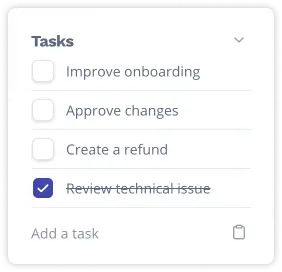
After the task has been created, you can click on it to open the task details. There you can add more information, such as:
description
assignee
priority
due date
subtasks
comments
attachments
tags
Create a task from a template
You can also create a task from a template directly inside a ticket.
This is helpful for recurring internal processes, such as customer onboarding, technical reviews, refund workflows, or other tasks that often follow the same structure.
When you create a task from a template, HelpSpace automatically applies the information stored in the template, such as the title, description, subtasks, assignee, status, or relative due date.
The task is also linked to the ticket, so your team can always see which customer request the task belongs to.
Please note: The template feature is only available in the Business Plan.
Why this is useful
Creating tasks inside tickets helps your team separate external customer communication from internal work.
The customer conversation stays in the ticket, while your team can use the linked task to coordinate the required next steps internally. This keeps everyone aligned and helps ensure that important work is not forgotten.
