

Quick replies help you write messages faster. They are pre-written text blocks that you can reuse whenever needed. This saves time and helps your team communicate with customers in a consistent and professional way.
Create a quick reply
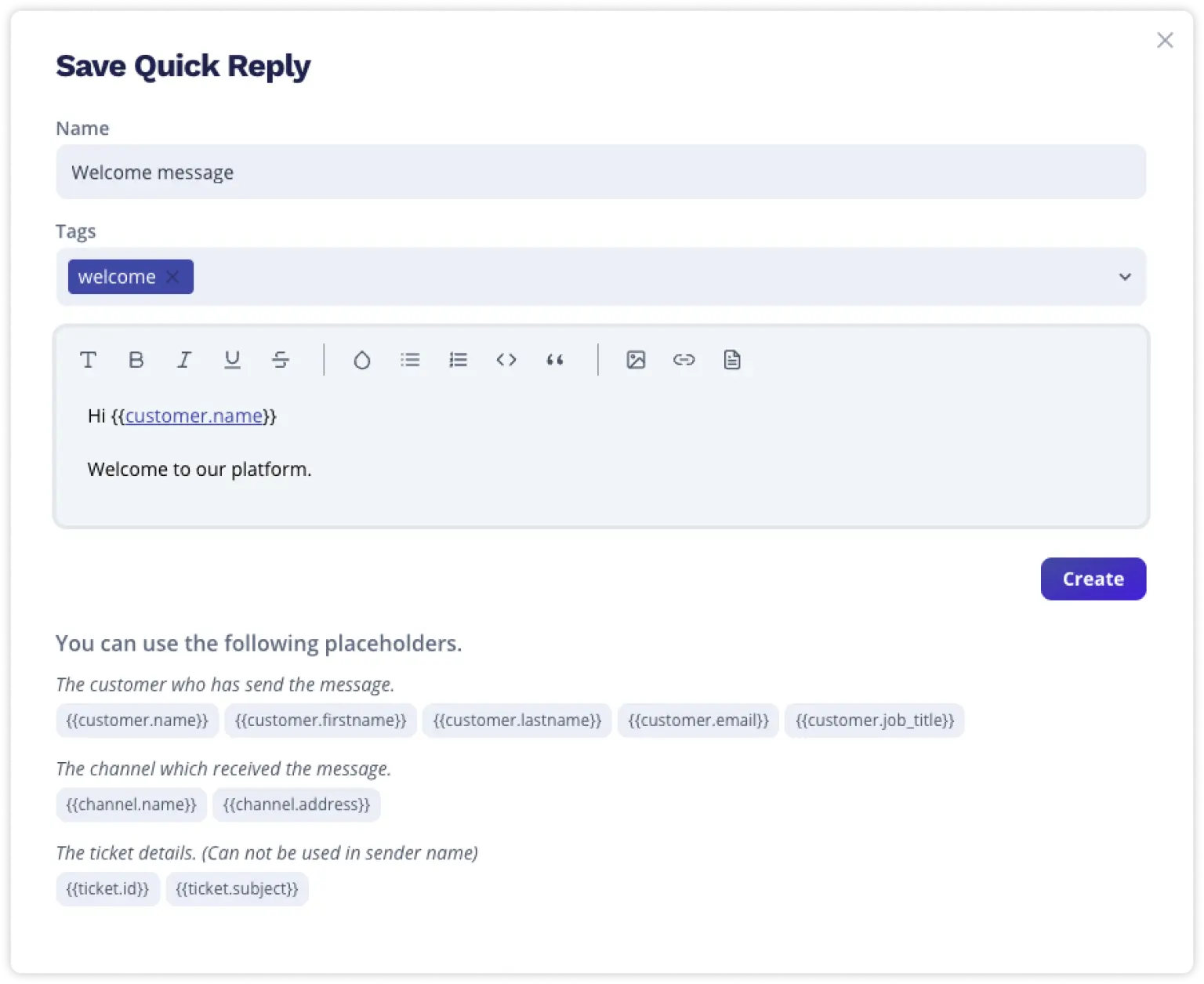
You can create quick replies in two ways:
From a ticket message
Write a message in a ticket.
Click Quick replies.
Select the option to save the current message as a new quick reply.
From the settings
Go to Settings → Quick replies.
Click Create new quick reply.
Add a title, content, and any additional details.
Save the quick reply.
Use placeholders and tags
You can use placeholders in quick replies, for example, for the customer’s name. All available placeholders are shown when you create or edit a quick reply.
You can also add tags to your quick replies. Tags help you find and filter the right quick reply faster later on.
Edit a quick reply
You can edit quick replies in two ways:
From a ticket message
Open a ticket message.
Click Quick replies.
Click the edit button next to the quick reply title.
Update the quick reply and save your changes.
From the settings
Go to Settings → Quick replies.
Open the quick reply you want to edit.
Update the content.
Save your changes.
Insert a quick reply into a message
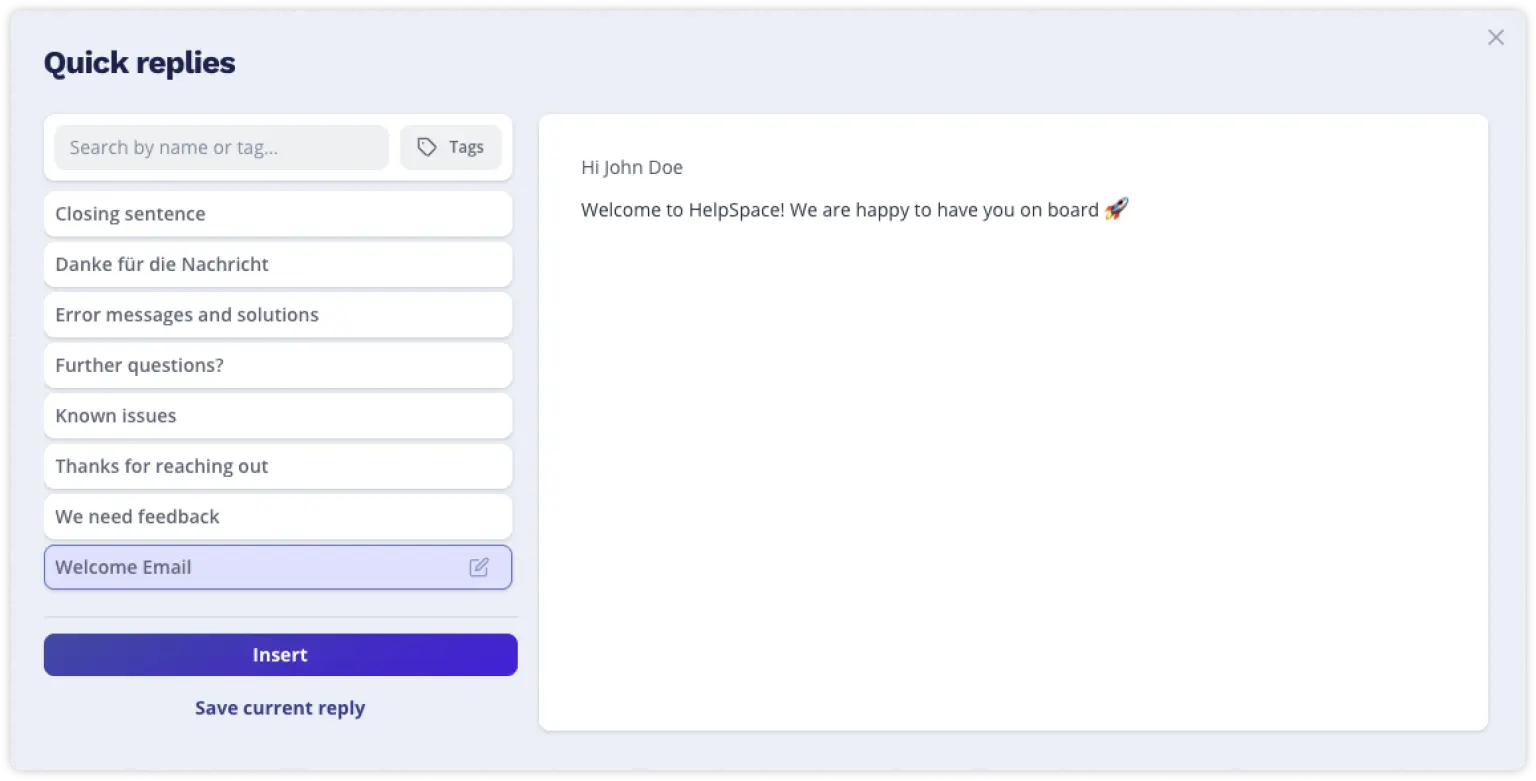
To insert a quick reply into a message:
Click the Quick replies icon in the message editor.
Search for a quick reply or filter quick replies by tag.
Click the title of a quick reply in the left column.
Check the preview on the right.
Click Insert to add the quick reply to your message.
The quick reply is inserted into the message editor. You can still adjust the text before sending it.
